Go to Home
Day Mode

iPhone to iPad Wi-Fi File Transfer

Transfer files from iPhone to iPad instantly with our Wi-Fi file transfer system — no cables, no cloud, no sign-up.

How to Connect iPhone and iPad

Situation 1
Same Wi-Fi Network
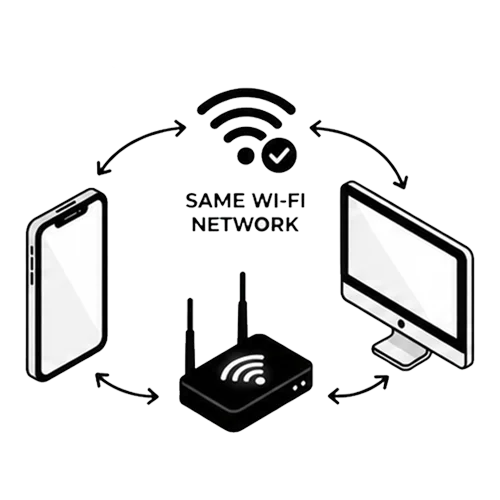
iPhone and iPad connected to the same Wi-Fi network for file transfer
  • File transfer between iPhone and iPad possible
  • Speed very fast, depending on Wi-Fi router/repeater location
  • Recommended by compressunder.com
Situation 2
Hotspot Shared by Third Device
iPhone and iPad sharing files through a hotspot from a third device
  • File transfer between iPhone and iPad possible
  • File transfer speed: very slow
  • Not recommended — only for special cases when Wi-Fi is unavailable
Situation 3
Hotspot Shared by iPhone or iPad
File transfer between iPhone and iPad using hotspot shared directly by sender or receiver
  • File transfer between iPhone and iPad possible
  • Speed normal
  • Recommended by compressunder.com if Wi-Fi is unavailable

Why CompressUnder Transfer?

Zero Data Usage
Transfers between iPhone and iPad stay within your local network — no mobile data or Wi-Fi bandwidth consumed.
Zero Cables Required
Creates a wireless bridge between your iPhone and iPad — no USB-C or Lightning cables needed.
No Server Storage
Your files travel directly between iPhone and iPad. Nothing is stored on any server — ever.
No Sign-Up Needed
No accounts, no emails, no passwords. Open the site on both your iPhone and iPad and start sharing instantly.
Completely Free
No hidden fees, no subscriptions, and no limits on how many times you share between iPhone and iPad.
Lightning Fast Speeds
Local network means no upload bottlenecks. Move gigabytes between iPhone and iPad in seconds.
100% Privacy & Security
A private tunnel between your iPhone and iPad. No third party — not even us — can see what you send.
Unlimited File Sizes
From a small doc to a 10GB video — transfer any file size between iPhone and iPad without artificial limits.

iPhone & iPad Platform Support

This tool enables seamless file transfer between iPhone (iOS) and iPad (iPadOS). Both devices just need a modern web browser — no extra software, plugins, or ecosystem lock-in. CompressUnder is the ultimate cross-platform alternative to AirDrop and Nearby Share.

Frequently Asked Questions

How do I transfer files from iPhone to
Open this page on both your iPhone and iPad. Make sure both devices are on the same Wi-Fi network. On the sending device, click "Send Files" and select your files. On the receiving device, click "Receive Files" and scan the QR code or enter the pairing code. The transfer starts instantly.
Do iPhone and iPad need to be on the same network?
Yes, both your iPhone and iPad need to be connected to the same Wi-Fi network or hotspot for quick and secure file transfers.
Do I need to install any software on my iPhone or
No installation is required on either device. All file transfers happen directly through your browser on both iPhone and iPad.
Is there a file size limit for iPhone to iPad transfers?
There is no artificial file size limit. File size depends on your browser and network speed. For larger files, we recommend using a stable Wi-Fi connection between your iPhone and iPad.
How secure is the transfer between iPhone and
Transfers happen directly between your iPhone and iPad on the same network. No files are stored on external servers, keeping your data private and secure.
Is this service completely free?
Yes, transferring files between iPhone and iPad is completely free. No hidden fees, no subscriptions, and no limits on usage.
Do I need an account to transfer files?
No account or login is required. Just open the website on your iPhone and iPad, connect both to the same network, and start transferring files!
Can I transfer files without Wi-Fi between iPhone and
You need a shared network connection for transfers. If Wi-Fi is not available, you can create a hotspot on one of the devices and connect the other to it.
What file types can I transfer between iPhone and
You can transfer any file type — documents, photos, videos, music, archives, and more. There are no restrictions on file formats.
Is this better than AirDrop or Nearby Share for iPhone to
Unlike AirDrop (Apple only) or Nearby Share (Android/Chrome OS), CompressUnder works across all platforms including iPhone and iPad. No ecosystem lock-in — just open your browser and share.

How iPhone to iPad File Transfer Works

To transfer files from iPhone to iPad, both devices must open the same website URL and be connected to the same Wi-Fi network or hotspot. This ensures fast, secure, and reliable file transfers between iOS and iPadOS. No plugins, no software installation, and no accounts required — everything happens directly through your browser. Whether you are moving documents, photos, videos, or any other file type, our tool handles it seamlessly across iPhone and iPad.